Free Download SpyHunter

Thursday, March 6, 2014

What can you do to remove Primeslots.com (Virus Removal Guides)

Being redirected to Primeslots.com all the time? Cannot remove Primeslots.com from your homepage? Here’s a removal guide to delete this page and stop redirections

Information about Primeslots.com

Primeslots.com is categorized as a creepy browser hijacker virus that should be removed from your PC right now. Normally, you are easy to get infected by Primeslots.com via corrupt websites and freeware, because this virus usually packs itself with them and when you carelessly open the infected files, Primeslots.com will get the chance to attack your system.
After invasion, to help hackers get as much money as possible, Primeslots.com will undertake a series of unauthorized activities. It can alter system settings in secret, so as to avoid security detection and hijack your web browser. As a result, this nuisance can activate itself automatically, and your homepage is replaced by http://Primeslots.com without your consent. Besides, every time you click a new link, Primeslots.com will pop up, along with a great number of advertisements, which makes your PC run as slow as a snail. Although it claims to provide more accurate search results for you, in fact, Primeslots.com will alter your search queries and reroute to suspicious domains. Through displaying pop-up ads and causing frequent redirection, Primeslots.com can unfairly enhance the Internet traffic of certain websites, from which its creators can make a sum of money.
What’s more, apart from computer problems, Primeslots.com is also can endanger your privacy safety, because it is able to spy on your browsing activities and pilfer your confidential information. So, to prevent greater damage, you are supposed to get rid of Primeslots.com right now.

Primeslots.com virus Screeshot:

1. Professional Removal from DooFix Online Experts (Recommended)

If you do not have enough techniques and time to get rid of this nasty virus, feel free to contact DooFix Online Experts for professional removal to save your computer and your trouble.

2. Manually Uninstall Remove Primeslots.com Virus

If you are familiar with various computer settings and manually editing registry, you can take the risk and try to manually remove Primeslots.com virus. Since there are too many steps to go through and time-consuming, please be very patient and careful when you try to manually remove Primeslots.com virus.
1. Close all browsers on your machine.
2. Click Start Menu and Control Panel.
3. Click Add/ Remove Programs
4. Uninstall suspicious or unknown toolbars or software that you installed recently
Remove Primeslots.com virus from Firefox
1. Run Firefox
2. Click Help and then Troubleshooting Information
3. Click Reset Firefox button to reset your Firefox settings
Remove Primeslots.com virus from Chrome
1. Run Chrome and find Settings in Chrome
2. Then click Extensions tab and uninstall suspicious or unknown extensions
Remove Primeslots.com virus from Internet Explorer
1. Run Internet Explorer and click Tools and Internet Options
2. Click Advanced tab and then click Reset button
3. Tick Delete personal settings, and then click Reset
4. Click Close after the reset.
To completely remove Primeslots.com virus, please:
1. Open registry editor and delete registry entries

HKEY_CURRENT_USER\Software\Microsoft\Internet Explorer\Download “CheckExeSignatures” = ‘no’
HKEY_CURRENT_USER\Software\Microsoft\Internet Explorer\Main “Use FormSuggest” = ‘yes’
2. Delete malicious files:
%UserProfile%\Desktop\ Primeslots.com.lnk
%UserProfile%\Start Menu\Programs\ Primeslots.com\

What is the best way to remove BuzzSurfing virus? (Removal Guides)

BuzzSurfing attacks your computer suddenly? You cannot remove it from your browser? Get lots of ads when surfing the Internet? No worries. This article tells you how to remove BuzzSurfing step by step

Information about BuzzSurfing

BuzzSurfing is a dangerous PC infection. According to its negative effects, experts classify it as a kind of browser hijackers. Like similar viruses, BuzzSurfing is used by hackers to gather illegal benefit through forcing victims to visit unwanted websites. Normally, BuzzSurfing is distributed through spam email attachments, compromised websites, pirated movie torrents and freeware installation packages. If you carelessly open those infected files, BuzzSurfing will get the chance to attack your system.
After invasion, this nuisance is able to mess up your PC. First of all, it hijacks your web browser through altering system settings, no matter you are using Firefox, Chrome or IE. And it is added to the browser as a plugin. At the same time, you will find other functional toolbars are disabled without your knowledge. You fail to recover the original settings, unless you remove BuzzSurfing virus. Besides, when you search for information on the Internet, BuzzSurfing will reroute all search results to suspicious websites which have little relation to your search queries. Moreover, BuzzSurfing generates numerous pop-up advertisements that keep popping up on the screen. As a result, the infected PC will run extremely slow and have a poor performance, because those pop-up ads and BuzzSurfing consume a big part of system resources.
Furthermore, apart from PC problems, BuzzSurfing has the ability to trigger greater damage, such as monitoring your browsing activities and stealing your private information. To sum up, for the purpose of protecting your computer and privacy, you must take immediate action to eliminate BuzzSurfing without any hesitation.

BuzzSurfing virus Screeshot:

1. Professional Removal from DooFix Online Experts (Recommended)

If you do not have enough techniques and time to get rid of this nasty virus, feel free to contact DooFix Online Experts for professional removal to save your computer and your trouble.

2. Manually Uninstall Remove BuzzSurfing Virus

If you are familiar with various computer settings and manually editing registry, you can take the risk and try to manually remove BuzzSurfing virus. Since there are too many steps to go through and time-consuming, please be very patient and careful when manually removing BuzzSurfing virus.
1. Close all browsers on your machine.
2. Click Start Menu and Control Panel.
3. Click Add/ Remove Programs
4. Uninstall suspicious or unknown toolbars or software that you installed recently
Remove BuzzSurfing virus from Firefox
1. Run Firefox
2. Click Help and then Troubleshooting Information
3. Click Reset Firefox button to reset your Firefox settings
Remove BuzzSurfing virus from Chrome
1. Run Chrome and find Settings in Chrome
2. Then click Extensions tab and uninstall suspicious or unknown extensions
Remove BuzzSurfing virus from Internet Explorer
1. Run Internet Explorer and click Tools and Internet Options
2. Click Advanced tab and then click Reset button
3. Tick Delete personal settings, and then click Reset
4. Click Close after the reset.
To completely remove BuzzSurfing virus, please:
1. Open registry editor and delete registry entries

HKCU\Software\Microsoft\Windows\CurrentVersion\Run\KB8456137 = “%LocalAppData%\KB8456137\KB8456137.exe”
HKCU\SOFTWARE\Microsoft\Windows\CurrentVersion\Policies\Explorer\DisallowRn HKCU\SOFTWARE\Microsoft\Windows\CurrentVersion\Run Regedit32
2. Delete malicious files:

%AllUsersProfile%\
%AllUsersProfile%\.exe

How to remove DP1815 virus with Its Removal Guide

The DP1815 virus is a potentially unwanted program categorized as adware, a browser hijacker,and spyware. DP1815 is essentially a Microsoft Windows program that attaches to Google Chrome, Mozilla Firefox, and Microsoft Internet Explorer as a browser add-on, browser helper object (BHO), and extension without direct user consent in order to serve targeted advertisements.DP1815 virus
Once DP1815 installed, the adware program will being to collect user information and will display target advertisements, deals, offers for searched items or currently viewed websites and products on retail websites.
DP1815 displays many types of advertisements including pop-under browser redirects that take up an entire browser window or computer screen, in-text ads that appear when a user hovers over a text link says something similar to “Ads by DP1815″ on them, or pop-up advertisements that appear when a user hovers over images and says something alike “brought by DP1815″ on them.

How does DP1815 malware get onto a computer?

DP1815 bundles with third-party freeware and shareware, as well as torrents from websites such as download.com and thepiratebay.
Users are often given the opportunity to accept or decline an offer to install DP1815 software and other items during the setup process of third-party freeware and shareware; However, the request to decline the offer is often ignored or presented in a very confusing manner and users may accidentally install DP1815.

  Green Arrow Bullet How to remove the DP1815 virus
  1. Automatically remove DP1815 virus - Scan for and automatically remove DP1815 and third-party malware
  2. Manually remove DP1815 virus - Remove/Uninstall DP1815 and third-party malware (if necessary)

1. Automatic DP1815 virus removal

Use the instructions below to automatically remove DP1815 and third-party malware, as well as automatically remove unwanted search engines from your installed internet browsers.

Malwarebytes Anti-Malware

1. We highly recommend writing down the toll free number below in case you run into any issues or problems while following the instructions. Our techs will kindly assist you with any problems.
2. Install the free or paid version of Malwarebytes Anti-Malware.
3. Once Malwarebytes is installed, run the program. If you are using the free version of Malwarebytes you will be prompted to update the database, make sure to do so.
Malwarebytes Perform Full Scan
4. On the first tab labeled “Scanner” select the Perform full scan option and click the Scan button to perform a full system scan. Malwarebytes will automatically detect malware infecting the computer system.
5. Once the malware scan is complete, Malwarebytes may prompt a notice stating malicious objects were detected. Select the malicious objects and click the Remove Selected button to completely remove the malicious files from your computer.

CCleaner

CCleaner can be used to automatically repair internet browser settings startup up settings, and uninstall DP1815 adware and associated third-party software.
1. Install the free or paid version of CCleaner by Piriform.
Purchase CCleaner for $24.95* Free Download
CCleaner Analyze Cleaner
2. Once installed, open the program and navigate to Cleaner > Windows/Applications and click the Analyze button. Afterwards, click the Run Cleaner button on the bottom right of the program interface.
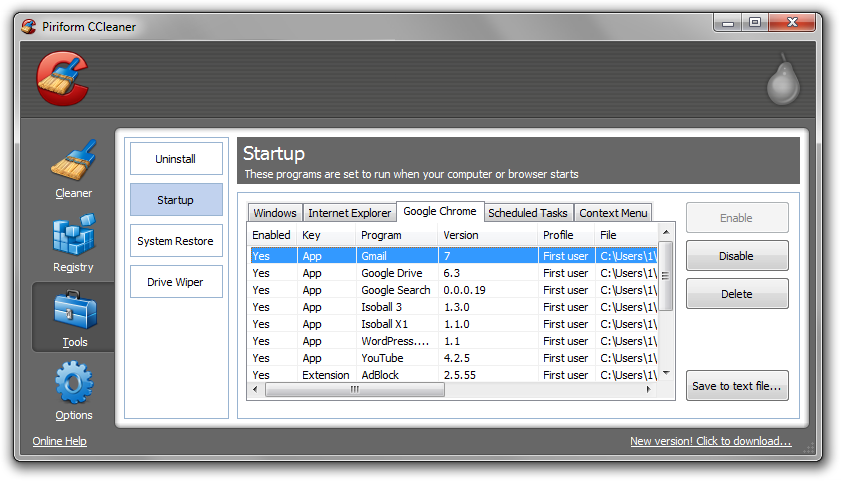
CCleaner Startup
3. Next, navigate to Tools > Startup and search through each tab starting from windows, internet explorer, etc., all the way to Content Menu, for additional suspicious entries and click Disable and Delete once anything is found.
4. To automatically uninstall DP1815 and other unwanted programs, navigate to the Uninstall tab and search for DP1815, etc. in the list of installed programs. Uninstall the unwanted software as selected by clicking the Run Uninstaller button.

2. Manual DP1815 virus removal

Use the instructions below to manually uninstall DP1815 and third-party software using Microsoft Windows removal procedures. 

How to uninstall DP1815

1. Access Windows Start Menu and navigate to the Control Panel.
Uninstall a program
2. Click Uninstall a program or Add and remove a program.
3. In the list of installed programs search for DP1815 and other potentially unwanted software. Once the adware program is located, double click the unwanted program(s) or highlight them in the list and click the Uninstall button. Keep in mind that DP1815 may use a different title name than suggested.

How to remove DP1815 add-ons and extensions

Use the instructions to remove DP1815 add-ons, extensions, plug-ins, and toolbars. Please note, it may be necessary to remove multiple third-party attachments.
Google Chrome
1. Click on the Customize icon (wrench or 3 bar icon) next to the address bar and navigate to Tools > Extensions.
2. Search for the DP1815 extension and remove it by clicking the trashcan icon next to it.
Mozilla Firefox
1. Type Ctrl+Shift+A.
2. On the Extensions and Plugin search for the DP1815 add-on and remove it.
Microsoft Internet Explorer
1. Click Tools and select Manage add-ons.
2. On the Toolbars and Extensions tab search for the DP1815 add-on and remove it if located